
Seamless Communication: Your Microsoft Teams Phone Setup for Small Business
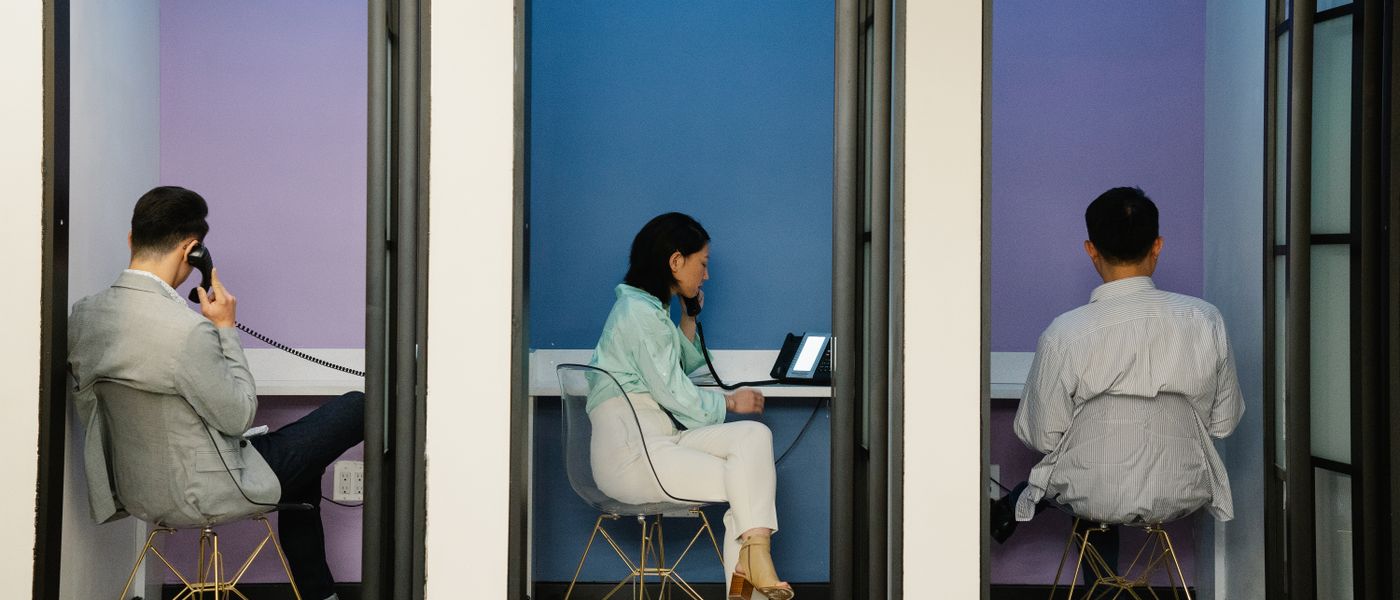
For small businesses in Montreal and beyond, an efficient communication system is no longer a luxury—it's a necessity. Outdated PBX systems often mean rigid contracts, high maintenance, and a fragmented user experience. This guide will walk you through a comprehensive Microsoft Teams Phone setup for small business, leveraging Microsoft's all-in-the-cloud voice solution. By the end, your team will be making and receiving external phone calls directly from Microsoft Teams, unified with your existing collaboration tools, and equipped with enterprise-grade PBX features like voicemail, call transfers, and auto attendants, all managed seamlessly through the Microsoft 365 ecosystem.
Prerequisites
- Active Microsoft 365 subscription: All users requiring external calling must have a foundational Microsoft 365 license (e.g., Business Basic, Standard, Premium, or Enterprise E1/E3/E5). These licenses include access to Microsoft Teams.
- Administrative Permissions: You must have a Global Administrator or Teams Administrator role within your Microsoft 365 tenant to perform the necessary configurations.
- PowerShell with Microsoft Teams Module: The latest version of PowerShell 7 (or higher) and the Microsoft Teams PowerShell module (
MicrosoftTeams) are required for command-line administration. Install or update usingInstall-Module -Name MicrosoftTeams. - Estimated Cost: Beyond your base Microsoft 365 subscription, expect per-user monthly costs for two primary add-ons: Teams Phone Standard (approximately $8-$10 CAD/user/month) and a Microsoft Teams Calling Plan (e.g., Domestic, ranging from $12-$15 CAD/user/month for unlimited minutes). Pay-As-You-Go plans offer flexibility for low-usage users.
Step 1: Verify Core Microsoft 365 and Teams Licensing
Before diving into phone system specifics, it's crucial to confirm that your users have the fundamental Microsoft 365 licenses that include Microsoft Teams. This ensures the underlying platform is ready to host the voice features.
Connect-MsolService
Get-MsolUser -All | Select-Object DisplayName, UserPrincipalName, @{Name="Licenses";Expression={($_.Licenses.AccountSkuId | Out-String).Trim()}}
Connect-MsolService: Establishes a connection to the Microsoft Online Services cloud, necessary for managing user licenses.Get-MsolUser -All: Retrieves all user accounts in your tenant.Select-Object DisplayName, UserPrincipalName, @{Name="Licenses";Expression={($_.Licenses.AccountSkuId | Out-String).Trim()}}: Formats the output to show each user's display name, UPN, and a list of assigned license SKUs. Look for SKUs likeBUSINESS_PREMIUM,STANDARDPACK,ENTERPRISEPACK, orTEAMS_EXPLORATORYwhich include Teams.
Portal alternative: Navigate to the Microsoft 365 admin center > Users > Active users. Select a user, then click on the Licenses & apps tab to view their assigned licenses.
Run this to verify: After executing the PowerShell command, inspect the output to confirm that the target users have an appropriate Microsoft 365 license that grants them access to Microsoft Teams.
Step 2: Acquire and Assign Teams Phone Standard Licenses
The Teams Phone Standard license is the cornerstone of your Microsoft Teams Phone setup for small business, providing the Private Branch Exchange (PBX) capabilities. This includes essential features like call hold, park, transfer, voicemail, auto attendants, and call queues. You'll need one of these licenses for every user who requires external calling functionality.
Connect-MsolService

# Step 2a: Identify the SkuPartNumber for Teams Phone Standard
# Note: SkuPartNumber might vary slightly based on your region or purchase agreement (e.g., New Commerce Experience).
# Look for a SKU containing 'TEAMS_PHONE_STANDARD' or 'PHONE_SYSTEM'.
$PhoneSystemSku = (Get-MsolAccountSku | Where-Object {$_.SkuPartNumber -like "*TEAMS_PHONE_STANDARD*" -or $_.SkuPartNumber -like "*PHONE_SYSTEM*"}).SkuPartNumber

if (-not $PhoneSystemSku) {
    Write-Warning "Teams Phone Standard SKU not found. Please verify available SKUs in Microsoft 365 admin center."
} else {
    Write-Host "Identified Teams Phone Standard SKU: $PhoneSystemSku"
    # Step 2b: Assign the license to a specific user
    $UserPrincipalName = "user@yourdomain.com" # Replace with the actual UPN
    Set-MsolUserLicense -UserPrincipalName $UserPrincipalName -AddLicenses $PhoneSystemSku

    Write-Host "Successfully assigned Teams Phone Standard to $UserPrincipalName."
}
Connect-MsolService: Connects to your Microsoft 365 tenant.Get-MsolAccountSku: Lists all available license SKUs that your organization can purchase or has purchased. This is crucial for identifying the exactSkuPartNumberfor Teams Phone Standard.Where-Object {$_.SkuPartNumber -like "*TEAMS_PHONE_STANDARD*" -or $_.SkuPartNumber -like "*PHONE_SYSTEM*"}: Filters the SKUs to find the relevant Phone System license.Set-MsolUserLicense -UserPrincipalName $UserPrincipalName -AddLicenses $PhoneSystemSku: Assigns the identified Phone System license to the specified user.
Portal alternative: First, purchase the licenses via Microsoft 365 admin center > Billing > Purchase services. Search for "Teams Phone Standard". Once purchased, go to Users > Active users, select the desired user, click Licenses & apps, and assign the "Microsoft Teams Phone Standard" license.
Run this to verify:
Get-MsolUser -UserPrincipalName "user@yourdomain.com" | Select-Object -ExpandProperty Licenses
Confirm that the TEAMS_PHONE_STANDARD_SKU (or similar) is listed under the user's assigned licenses.
Step 3: Acquire and Assign Microsoft Teams Calling Plan Licenses
To enable your users to make and receive calls from the Public Switched Telephone Network (PSTN) – that is, external phone numbers – you need a Microsoft Teams Calling Plan. For most small businesses, a Domestic Calling Plan is the most economical and straightforward option, offering a pool of minutes for calls within your country. Pay-As-You-Go plans are also available for users with very low outbound call volume.
Connect-MsolService

# Step 3a: Identify the SkuPartNumber for your desired Calling Plan (e.g., Domestic)
# Look for a SKU containing 'DOMESTIC_CALLING_PLAN' or 'PSTN_CALLING_PLAN'.
# Example for Canada: 'MCOEV_DOMESTIC_CALLING_PLAN_CA'
$CallingPlanSku = (Get-MsolAccountSku | Where-Object {$_.SkuPartNumber -like "*DOMESTIC_CALLING_PLAN*"}).SkuPartNumber

if (-not $CallingPlanSku) {
    Write-Warning "Domestic Calling Plan SKU not found. Please verify available SKUs in Microsoft 365 admin center for your region."
} else {
    Write-Host "Identified Calling Plan SKU: $CallingPlanSku"
    # Step 3b: Assign the Calling Plan license to a specific user
    $UserPrincipalName = "user@yourdomain.com" # Replace with the actual UPN
    Set-MsolUserLicense -UserPrincipalName $UserPrincipalName -AddLicenses $CallingPlanSku

    Write-Host "Successfully assigned Calling Plan to $UserPrincipalName."
}
Connect-MsolService: Connects to your Microsoft 365 tenant.Get-MsolAccountSku: Lists available license SKUs.Where-Object {$_.SkuPartNumber -like "*DOMESTIC_CALLING_PLAN*"}: Filters for the Domestic Calling Plan SKU. Note that these SKUs are region-specific (e.g., US, UK, CA, EU countries).Set-MsolUserLicense -UserPrincipalName $UserPrincipalName -AddLicenses $CallingPlanSku: Assigns the Calling Plan license to the specified user.
Portal alternative: Purchase the Calling Plan via Microsoft 365 admin center > Billing > Purchase services. Search for "Teams Domestic Calling Plan" (or International/Pay-As-You-Go). Once purchased, go to Users > Active users, select the user, click Licenses & apps, and assign the appropriate Calling Plan license.
Run this to verify:
Get-MsolUser -UserPrincipalName "user@yourdomain.com" | Select-Object -ExpandProperty Licenses
Confirm that the DOMESTIC_CALLING_PLAN_SKU (or similar) is listed. Note that all users with the same Calling Plan in the same country share a pool of minutes, optimizing usage for SMBs.
Step 4: Configure Emergency Address (E911)
Accurate emergency addresses are critically important for any phone system, especially for a Microsoft Teams Phone setup for small business. This ensures that emergency services can quickly locate your users if they dial 911 (or 999/112 in other regions) from their Teams client. You must define these addresses in the Teams Admin Center.
Connect-MicrosoftTeams

# Define your main office emergency address
$LocationId = "SkyCoreMontrealMain"
$Description = "SkyCore Montreal Main Office"
$Address = "123 SkyCore Avenue, Suite 100, Montreal, QC H3B 3J7, Canada"

New-CsOnlineLisLocation -LocationId $LocationId -Description $Description -Address $Address

Write-Host "Emergency address '$LocationId' created successfully."
Connect-MicrosoftTeams: Establishes a connection to the Microsoft Teams service.New-CsOnlineLisLocation: Creates a new Location Information Service (LIS) entry for emergency addresses.-LocationId: A unique identifier for your location (e.g., "OfficeMain", "Warehouse").-Description: A human-readable description of the location.-Address: The full civic address, including street, city, province/state, postal code, and country.
Portal alternative: Go to the Teams admin center > Locations > Emergency addresses. Click Add, fill in the required address details, and save. Repeat for all physical locations.
Run this to verify:
Get-CsOnlineLisLocation
Ensure your newly created emergency address is listed correctly.
Step 5: Acquire and Assign Phone Numbers to Users
Once your users are licensed and emergency addresses are configured, the next step in your Microsoft Teams Phone setup is to assign actual phone numbers. You can either acquire new numbers directly from Microsoft through the Teams Admin Center or port existing numbers from your current carrier.
Connect-MicrosoftTeams

# Step 5a: View available numbers (if you've acquired them via TAC or PowerShell)
Get-CsOnlineVoiceNumber

# Step 5b: Assign a phone number to a user
$UserPrincipalName = "user@yourdomain.com" # Replace with the actual UPN
$PhoneNumber = "+15145551234" # Replace with the actual phone number you wish to assign (including country code)
$LocationId = "SkyCoreMontrealMain" # The LocationId created in Step 4

Set-CsPhoneNumberAssignment -Identity $UserPrincipalName -PhoneNumber $PhoneNumber -PhoneNumberType CallingPlan -LocationID $LocationId

Write-Host "Phone number $PhoneNumber assigned to $UserPrincipalName successfully."
Connect-MicrosoftTeams: Connects to the Teams service.Get-CsOnlineVoiceNumber: Lists the phone numbers available in your tenant that can be assigned.Set-CsPhoneNumberAssignment: Assigns a phone number to a user.-Identity: The User Principal Name (UPN) of the user.-PhoneNumber: The full phone number including the country code (e.g., +15145551234).-PhoneNumberType CallingPlan: Specifies that this number is part of a Microsoft Calling Plan.-LocationID: Links the phone number to an emergency address, critical for E911.
Portal alternative: To acquire numbers, go to Teams admin center > Voice > Phone numbers > Add. Follow the wizard to select your country/region, number type (e.g., user), quantity, and emergency location. Once numbers are acquired, go to Users > Manage users, select the user, click Account, and under "Phone number," assign an available number and emergency location.
Run this to verify:
Get-CsOnlineUser -Identity "user@yourdomain.com" | Select-Object DisplayName, LineUri, EnterpriseVoiceEnabled
Confirm that the LineUri field shows the assigned phone number (e.g., tel:+15145551234) and EnterpriseVoiceEnabled is True.
-LocationID parameter is used during number assignment or configured via the portal.Step 6: Configure Voice Routing and Calling Policies
Calling policies dictate how users can make and receive calls, including features like call forwarding, delegation, call park, and private call allowance. For a small business, the global policy often suffices, but customizing policies allows for fine-grained control over specific user groups or roles within your Microsoft Teams Phone setup.
Connect-MicrosoftTeams

# Step 6a: Review existing calling policies
Get-CsOnlineCallingPolicy

# Step 6b: (Optional) Create a custom calling policy for specific needs
# Example: A policy for receptionists who need call park and call delegation
# New-CsOnlineCallingPolicy -Identity "SkyCoreReceptionistPolicy" -AllowCallForwarding $true -AllowDelegation $true -AllowCallParking $true

# Step 6c: Assign a calling policy to a user
# For most users, the Global policy is sufficient. To assign a custom policy:
$UserPrincipalName = "user@yourdomain.com" # Replace with the actual UPN
$PolicyName = "Global" # Or "SkyCoreReceptionistPolicy" if you created one

Grant-CsCallingPolicy -Identity $UserPrincipalName -PolicyName $PolicyName

Write-Host "Calling policy '$PolicyName' assigned to $UserPrincipalName successfully."
Connect-MicrosoftTeams: Connects to the Teams service.Get-CsOnlineCallingPolicy: Lists all available calling policies in your tenant, including the default Global policy.New-CsOnlineCallingPolicy: (Optional) Creates a new custom calling policy with specific feature settings.Grant-CsCallingPolicy: Assigns a specified calling policy to a user.-Identity: The User Principal Name (UPN) of the user.-PolicyName: The name of the calling policy to assign (e.g., "Global" or your custom policy name).
Portal alternative: Go to the Teams admin center > Voice > Calling policies. You can modify the Global policy or click Add to create a new custom policy. To assign, go to Users > Manage users, select the user, click Policies, then Edit, and select the desired Calling policy.
Run this to verify:
Get-CsOnlineUser -Identity "user@yourdomain.com" | Select-Object DisplayName, CallingPolicy
Confirm that the correct calling policy name is associated with the user.
Step 7: Verify Voicemail and Call Answering Rules
Voicemail is an integral part of any modern phone system. With Microsoft Teams Phone, voicemail is automatically provisioned for licensed users. Users can manage their voicemail greetings and call answering rules directly from their Teams client, while administrators can configure global voicemail policies.
Connect-MicrosoftTeams

# Step 7a: Review global voicemail policies
Get-CsOnlineVoicemailPolicy

# Most SMBs will use the Global policy. Ensure PSTN voicemail is enabled (usually by default).
# Set-CsOnlineVoicemailPolicy -Identity Global -PstnVoicemailEnabled $true

# Step 7b: (Optional) Assign a custom voicemail policy if created
# New-CsOnlineVoicemailPolicy -Identity "NoVoicemailPolicy" -PstnVoicemailEnabled $false
# Grant-CsOnlineVoicemailPolicy -Identity "user@yourdomain.com" -PolicyName "NoVoicemailPolicy"

Write-Host "Voicemail policies reviewed. Individual user settings are managed via the Teams client."
Connect-MicrosoftTeams: Connects to the Teams service.Get-CsOnlineVoicemailPolicy: Displays existing voicemail policies.Set-CsOnlineVoicemailPolicy: Allows modification of a voicemail policy, for example, enabling/disabling PSTN voicemail.Grant-CsOnlineVoicemailPolicy: Assigns a specific voicemail policy to a user.
Portal alternative: Go to the Teams admin center > Voice > Voicemail policies. Review the Global policy settings. Users configure their personal voicemail greetings and call answering rules (e.g., call forwarding, simultaneous ring) directly within their Microsoft Teams client settings under Calls.
Run this to verify: Initiate an external call to a user's assigned Teams phone number and let it ring to voicemail. Confirm that the voicemail is recorded and accessible within the user's Teams client under the Calls app > Voicemail tab. Also, ask the user to configure a custom greeting and test again.
When to bring in a consultant
While this guide covers a robust Microsoft Teams Phone setup for most small businesses, certain scenarios benefit greatly from expert consultation. If your organization requires complex call routing (e.g., multi-level auto attendants, sophisticated call queue routing), integration with existing CRM systems, porting a large volume of phone numbers from an archaic PBX, a hybrid identity setup (on-premises Active Directory synchronization), or optimizing a global communication strategy, SkyCore Solutions is here to help. Our Azure architects specialize in ensuring your Teams Phone system meets your unique business demands efficiently and securely.
Book a free consultation